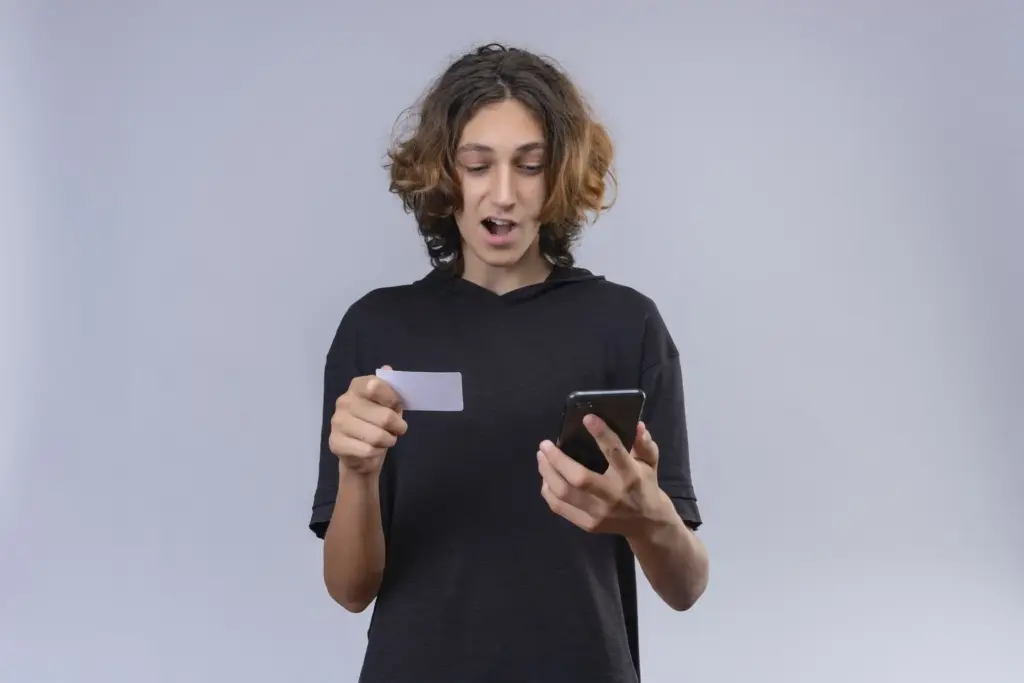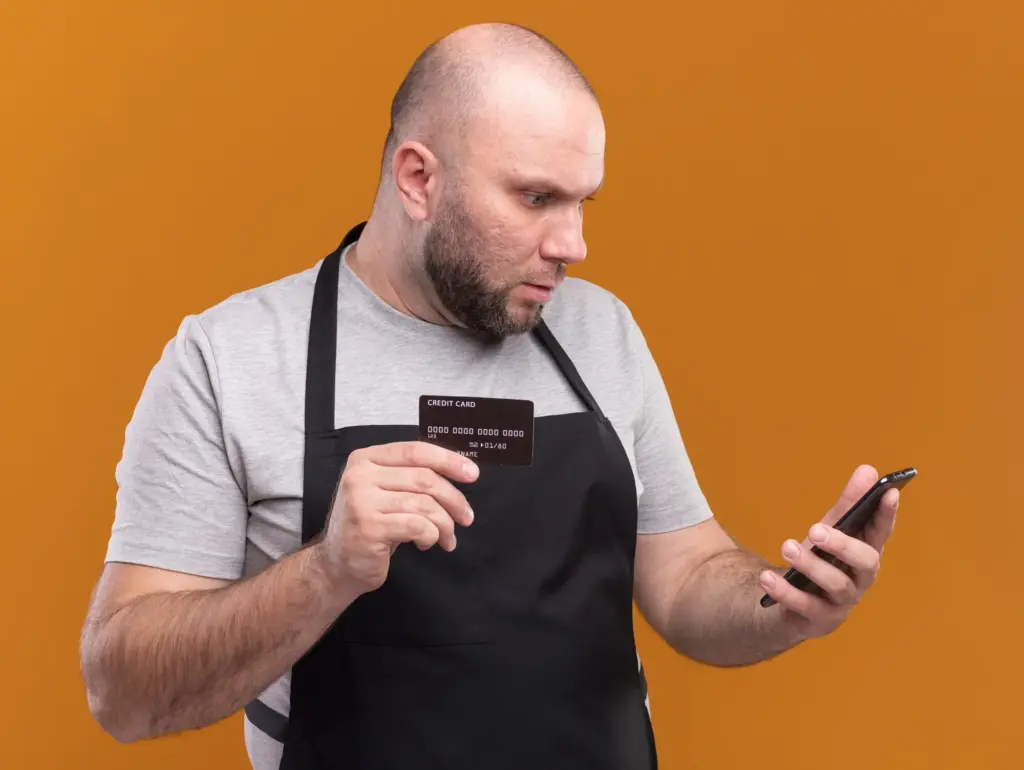
Make Every Tap Count at the Checkout

Today we’re diving into troubleshooting common contactless payment problems at the checkout, turning frustrating moments into quick, confident fixes. Learn what to do when a tap is ignored, why terminals ask for PINs, and how small adjustments restore speed, security, and peace of mind.

How the Tap Actually Works

Understand the invisible conversation between your card or phone and the checkout reader. Near-field communication, EMV protocols, and tokenization exchange encrypted data in milliseconds, while the terminal decides whether to approve, request a PIN, or fall back. Knowing this flow turns mysteries into manageable, predictable steps you can calmly navigate.

Rapid Checkout Troubleshooting

When the reader stays silent, act methodically. Confirm the contactless logo is lit, remove other cards from the back of your phone, and hold steady. Switch hands, angle, or distance slightly. If nothing changes, request a chip insert or alternate reader to isolate the issue quickly.

Check Readiness Signals

Look for a pulsing light, contactless symbol, or a message inviting a tap. Some terminals require the cashier to press a key first. Politely ask, then try again. If the display shows Insert or Swipe Only, save seconds by moving directly to the chip slot or magstripe fallback.

Eliminate Interference

Remove the pop socket metal plate, thick magnetic case, or stack of transit cards living behind your phone. Separate wallets prevent cross-talk that confuses readers. For physical cards, avoid holding multiple together; clashing antennas create noise. One card, one tap, clean alignment, steady hand, patient pause.

Phone, Watch, and Card Checks

Most hiccups trace to simple settings. Ensure NFC is on, your wallet app is unlocked or invoked, and the correct card is selected. Watches must be on-wrist and unlocked. Inspect cards for cracks or bubbles; damaged antennas silently fail until your bank replaces them.

Mobile Wallet Setup Audit

On Android, confirm NFC and Tap and pay are enabled, with your preferred wallet set as default. On iPhone, double-click settings and Face ID permissions streamline launches. Keep device OS updated, add backups, and remove expired cards to reduce routing confusion and improve reliability at busy counters.

Battery, Locks, and Sensors

Low power modes can throttle radios, and a dead battery disables NFC entirely. Unlock before tapping; biometric prompts time out quickly. For watches, confirm passcode entry after wearing. Skin contact sensors must detect your wrist, or the wallet will refuse transactions to protect against misuse.

Card Condition and Limits

Look for the contactless wave symbol and check expiry dates. If the card works in the chip slot but never taps, the embedded antenna likely failed. Issuers also set per-transaction or cumulative limits; after several small purchases, a chip-and-PIN reset may be required to continue tapping.

Reader, Network, and Merchant Realities

Signs the Terminal Is at Fault

Repeated beeps without messages, frozen displays, or a reader that never lights indicates maintenance is overdue. Politely ask whether contactless is enabled today, and whether another lane works better. A quick move can save minutes while staff reboot or reconfigure behind the counter without pressure.

Understanding Limits and CVM

Countries set contactless thresholds. Above certain amounts, or after many taps, terminals demand a PIN or signature. That is not a decline; it is risk management. Insert the card, complete verification, and future taps typically resume smoothly because counters and limits were refreshed during approval.

Network Outages and Offline Modes

When networks falter, terminals may tighten risk settings or disable taps entirely. Unattended machines often run offline with strict limits. If you see processing delays or generic errors, switching lanes, trying a different card, or using the chip can complete purchase while systems recover.

Bank Side Decisions and Security Rules

Issuers watch spending patterns to detect fraud, occasionally blocking taps that look unusual. International travel, mismatched locations, or repeated small transactions can trigger protective checks. Use your bank app to confirm merchant details, unlock cards, or enable travel notes, then try again with confidence.

Transit Gates, Parking, and Unattended Machines
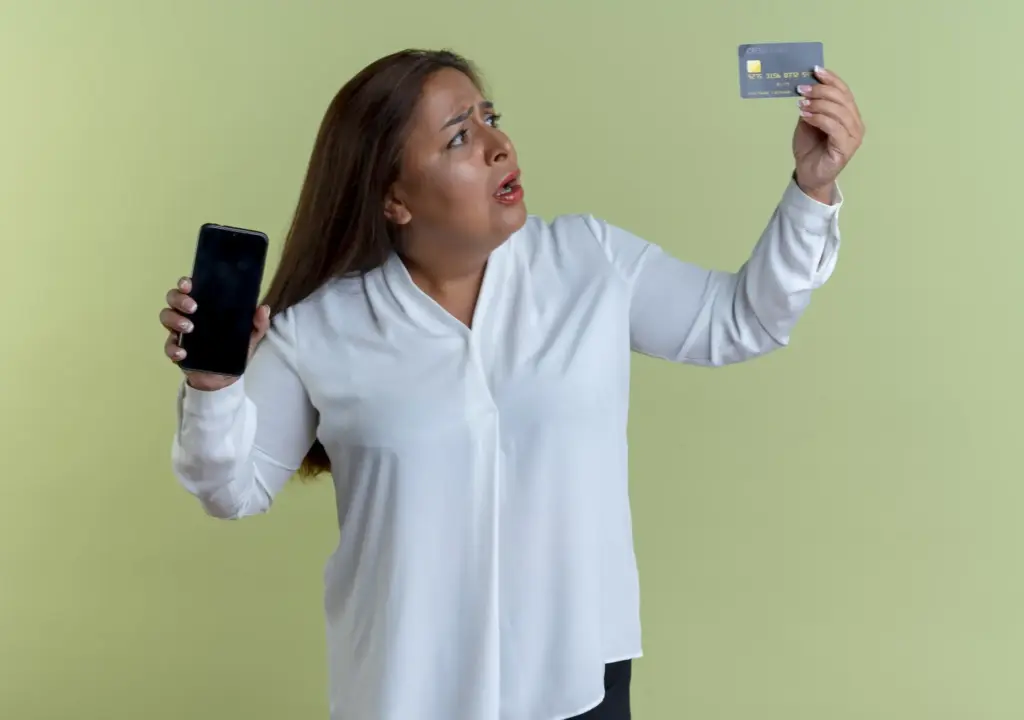
Express Transit on Phones and Watches

Apple and Google support Express modes that allow taps without unlocking for selected transit cards. Enable the feature, keep a primary card active, and practice the exact placement on gates. Even during dead battery reserve, some iPhones complete fare taps, saving time when schedules get tight.

Unattended Terminal Quirks

Apple and Google support Express modes that allow taps without unlocking for selected transit cards. Enable the feature, keep a primary card active, and practice the exact placement on gates. Even during dead battery reserve, some iPhones complete fare taps, saving time when schedules get tight.

Parking and EV Chargers

Apple and Google support Express modes that allow taps without unlocking for selected transit cards. Enable the feature, keep a primary card active, and practice the exact placement on gates. Even during dead battery reserve, some iPhones complete fare taps, saving time when schedules get tight.

Preventive Habits and Community Tips

Small habits multiply reliability. Keep software updated, tidy your digital wallet, and avoid stacking cards with magnets. Practice a confident, steady placement. When oddities happen, note time and lane to help staff. Share experiences below, subscribe for fresh fixes, and help others tap without stress.
Faritelitoraveltonari
Privacy Overview

This website uses cookies so that we can provide you with the best user experience possible. Cookie information is stored in your browser and performs functions such as recognising you when you return to our website and helping our team to understand which sections of the website you find most interesting and useful.